How to watch your iPhone videos on the TV
Three ways to watch iPhone videos on the TV (AirPlay, an HDMI adapter, or a Chromecast), what each needs, and why a raw camera roll is still hard to enjoy.
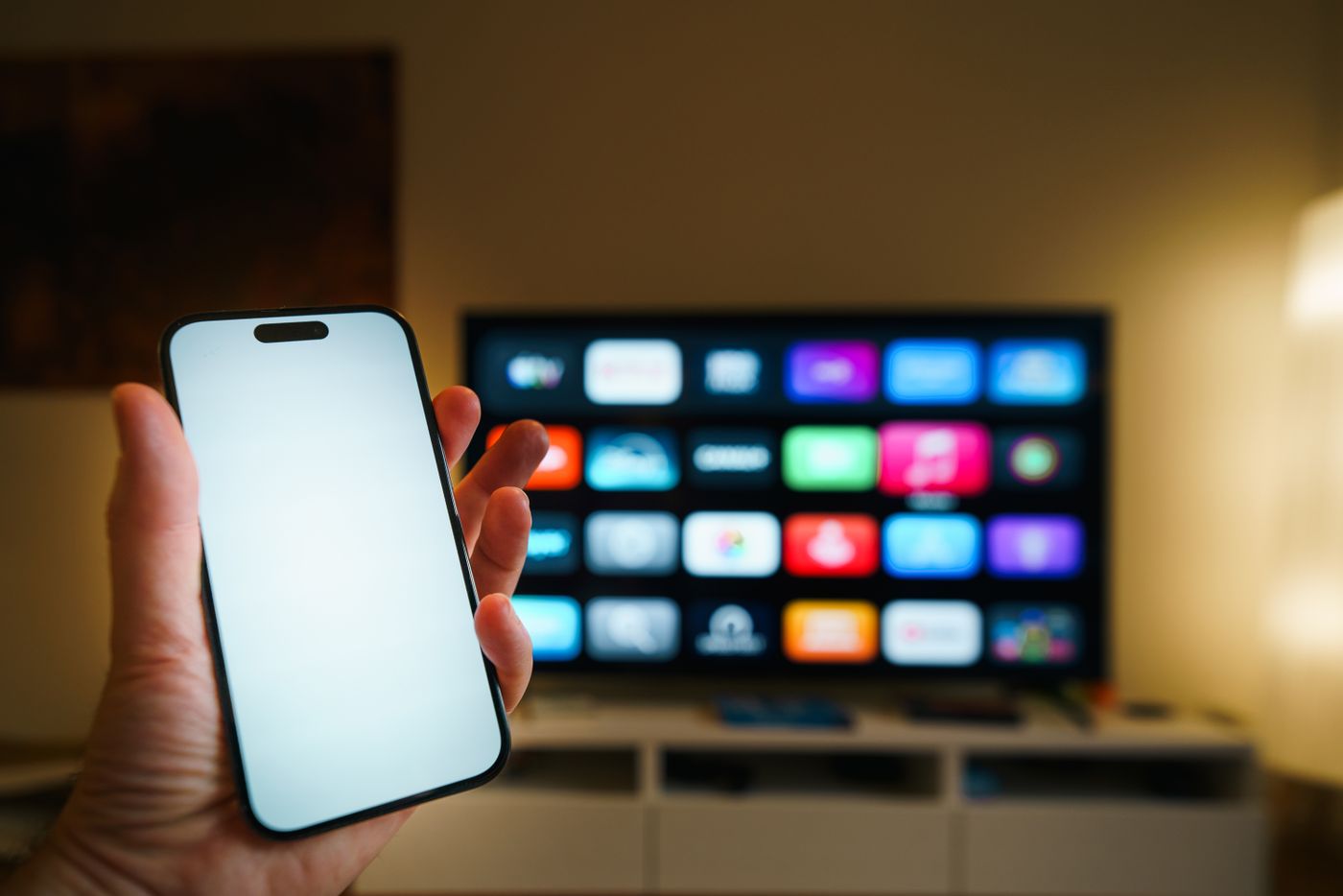
The fastest way to watch your iPhone videos on the TV is AirPlay: put the phone and an Apple TV or AirPlay-compatible TV on the same Wi-Fi network, open a video in Photos, tap Share, then the AirPlay button, and pick the TV. If your TV does not support AirPlay, an HDMI adapter works without any Wi-Fi at all. Getting the video onto the screen is the easy half. Getting a family to sit through it is the harder one.
Key takeaways
- AirPlay is the simplest route if you have an Apple TV or a TV that supports AirPlay. Both devices need the same Wi-Fi network.
- A cable adapter is the most reliable route and needs no network, but it mirrors the phone, so the phone is tied up while it plays.
- Streaming a video and mirroring your screen are two different things on iPhone. For watching footage, streaming is usually what you want.
- Whichever route you pick, a raw camera roll is a poor thing to put on a TV. The problem is what you play, not how you connect.
This post is the practical half of a bigger question I wrote about in what to do with the thousands of videos on your phone. Here I cover the connections first, and then the part nobody mentions: why your own videos so often feel wrong on a big screen.
How do you watch iPhone videos on a TV with AirPlay?
AirPlay sends the video from your iPhone to the TV over your home Wi-Fi, with no cable. Apple's instructions are short: your iPhone and the receiving device (an Apple TV, a compatible smart TV, or a Mac) have to be on the same Wi-Fi network. Then you find the content, tap the AirPlay icon in the playback controls (or the Share button, depending on the app), and choose the TV from the list. If the TV shows a passcode, you type it on the phone (Apple: Stream video or mirror your iPhone or iPad screen with AirPlay).
Step by step, for a video in the Photos app:
- Connect the iPhone and the TV (or Apple TV) to the same Wi-Fi network.
- Open the video in Photos and tap the Share button.
- Tap AirPlay and choose your TV from the list.
- Enter the passcode on the phone if the TV shows one.
- Press play. To stop, tap the AirPlay button again and pick your device.
Two practical notes:
- The "same network" rule catches people out. Many routers broadcast a 2.4 GHz and a 5 GHz network under slightly different names, and some guest networks block devices from seeing each other. If the TV does not appear in the list, the first thing to check is that the phone and the TV are on the same network, not just the same house.
- Your phone is free once the video is playing. That is the main reason to prefer streaming over mirroring. You can leave the room with the phone and the video keeps going on the TV.
Not every TV supports AirPlay. The settings menu on your TV will usually name AirPlay if it is there. If you are not sure, the quickest test is simply to open the AirPlay menu on the phone and see whether the TV appears.
What is the difference between streaming a video and mirroring the screen?
Streaming sends only the video to the TV, and your phone stays usable. Mirroring copies everything on your phone's screen to the TV, including notifications, until you stop it. Apple treats them as two separate functions on the same support page.
To mirror, you open Control Center, tap Screen Mirroring, and choose the TV. The whole iPhone screen then appears on it. That is useful for showing a slideshow or an app that has no AirPlay button, and it is a poor way to watch a film or a family video, because:
- A portrait video mirrored onto a landscape TV sits in a narrow strip with black bars on both sides.
- A text message from your sister can appear in the middle of your child's first birthday.
- The phone has to stay awake and nearby.
For footage, use the AirPlay button on the video itself.
Can you connect an iPhone to a TV with a cable?
Yes. A cable adapter is the most dependable way to get the picture on a TV, because it does not care about Wi-Fi. Apple sells Digital AV adapters that match the connector on your phone. You plug the adapter into the charging port, connect an HDMI cable from the adapter to the TV, and pick that HDMI input on the TV. Apple's page describes it as mirroring your iPhone's content to a second display, with audio carried over the HDMI connection (Apple: Get help with Apple Digital AV Adapters).
There is one limit worth knowing before you buy anything. Apple notes that movies, TV shows and certain streaming video apps require HDCP (High-Bandwidth Digital Content Protection), and an adapter without it will show an alert instead of playing protected content. That applies to rented films and streaming apps. Your own home videos are not protected content, so it is rarely the reason a family video fails to play.
The trade-offs, honestly:
- Reliable, and no network needed. Good for a holiday rental, a relative's house, or a TV in a room with poor Wi-Fi.
- Mirrors the phone, so the phone is tied to the TV for the whole viewing.
- Another thing to carry. It lives in a drawer, and you find it when you do not need it.
What about Chromecast and other TVs?
A Chromecast does not speak AirPlay. It uses Google's Cast system instead, so you cannot pick it from the iPhone's AirPlay list. To use one from an iPhone you generally need an app that has a Cast button built in, and you set the device up through Google's Home app (Google: Chromecast Help). The built-in Photos app does not offer a Cast button.
In practice that means three situations:
- Apple TV or an AirPlay-compatible TV: use AirPlay, as above.
- Chromecast or a Google TV: you need an app that supports Cast. Tapeflix has a Cast button for this, though AirPlay is the main path I build around.
- Any TV with an HDMI port: the cable adapter always works.
Which way should you pick?
- Apple TV or AirPlay TV, and you want your phone free: AirPlay streaming.
- Showing an app or slideshow that has no AirPlay button: AirPlay screen mirroring, accepting that the phone is tied up.
- Any TV with HDMI, or no usable Wi-Fi: an HDMI adapter. It mirrors the phone and needs no network.
- Chromecast or Google TV: an app with a Cast button, since Photos has none.
Why do your own videos feel wrong on the TV?
Connecting is the solved part. The reason most people try it once and never do it again is what happens next: you scroll through a camera roll on a 55-inch screen, hunting for the clip, while the family waits.
You probably know the scene: someone says "no, wait, it's the one from before the holiday", the scrolling continues, and the others drift back to their own phones. Three things make it bad:
- Portrait video on a landscape screen. Most phone video is shot upright. On a wide TV it becomes a thin column of picture with big black borders. It is technically watchable and nobody enjoys it.
- No order and no ending. A camera roll is a list, not a programme. There is nothing that tells you when it is over, so the evening ends when someone gets bored.
- Raw footage. The wobble, the false starts and the seventeen near-identical takes are fine when you glance at them on a phone. On a big screen with the sound up, they are slow.
None of this has anything to do with whether your Wi-Fi is working. It is why I built Tapeflix: the app takes your camera roll and turns it into episodes you watch like a series, and when you cast to an AirPlay TV, it prepares a landscape version of the episode first so you do not get the thin portrait strip. The first time you do it, the TV version can take a moment to prepare. That is a real wait, and the app says so on screen rather than pretending it is instant.
To be fair about the limits: Tapeflix is iPhone-only, the free tier is one episode made from at least 10 minutes of footage, and its on-device face matching separates adults well but can mix up young children. If you only want to put one particular clip on the TV, you do not need it. Use AirPlay and the Photos app.
What should you do before a family video night?
A few small things make the difference between a good evening and the scrolling:
- Choose before you sit down. Pick the clips, an album, or an episode ahead of time, so the evening is watching and not searching.
- Make sure the videos are actually on the phone. If you use iCloud Photos with Optimize Storage turned on, Apple describes the full-resolution originals as living in iCloud, with smaller versions kept on the device (Apple: Set up and use iCloud Photos). Open the video once on Wi-Fi before the family is waiting, so it has downloaded.
- Test the connection earlier in the day. A quick AirPlay test at 5 p.m. saves you a bad evening.
- Keep it short. A selection of a few minutes people can enjoy beats an hour of everything. I wrote about why in what to do with the thousands of videos on your phone.
For how Tapeflix handles the footage you give it, see the privacy policy.
FAQ
Why does my iPhone not find my TV in the AirPlay list?
The most common cause is that the phone and the TV are on different Wi-Fi networks, or the TV does not support AirPlay at all. Check that both are on the same network (a guest network or a separate 5 GHz name can split them), that AirPlay is turned on in the TV's settings, and then try again. If the TV simply does not support AirPlay, an HDMI adapter is the fallback.
Can I watch iPhone videos on a TV without Wi-Fi?
Yes. An Apple Digital AV adapter and an HDMI cable connect the phone straight to the TV and need no network. The catch is that it mirrors your phone, so the phone stays plugged in and tied to the TV while the video plays.
What is the difference between AirPlay and screen mirroring?
AirPlay video streaming sends just the video to the TV, so your phone stays free to use. Screen mirroring copies everything on the phone's screen to the TV, notifications included. Apple documents them as two separate functions. For watching footage, streaming is the one to use.
Can I cast iPhone videos to a Chromecast?
Not through AirPlay. A Chromecast uses Google Cast, so you need an app with a Cast button on the iPhone. The built-in Photos app does not offer one. Apps that support Cast, including Tapeflix, let you send video to a Chromecast.
Why do my videos have black bars on the TV?
Because most phone video is filmed upright (portrait) and a TV is wide (landscape). The video is shown at its own shape, so the sides stay black. The fix is to film horizontally, or to watch a version that has been prepared for a landscape screen.