How to organize iPhone videos without losing a weekend
How to organize iPhone videos in about an hour: videos only, merge duplicates, delete the junk, favorite the keepers, then stop before it eats your weekend.
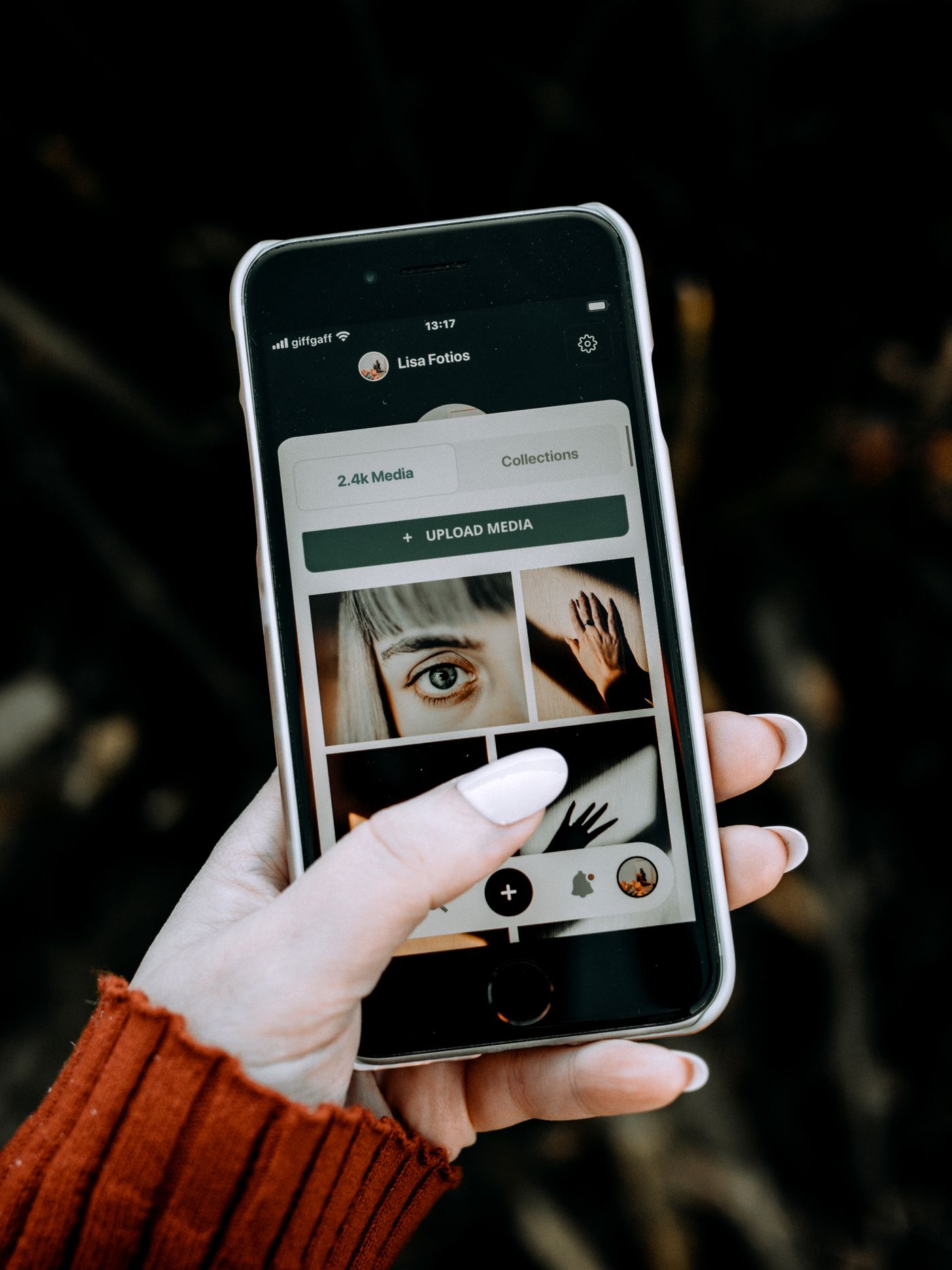
The fastest way to organize iPhone videos is to do four short passes and then stop: show only videos, merge the duplicates, delete the obvious junk, and favorite the keepers. That is about an hour, not a weekend. What it will not do is make anyone watch the result, and I will come back to that at the end.
Key takeaways
- Do it in four passes, each one needing almost no judgement: videos only, duplicates, junk, favorites.
- Use the built-in tools first. Photos already has a Duplicates album, a videos filter and Favorites.
- Deleting is safer than it feels: deleted items sit in Recently Deleted for 30 days.
- Do not build a folder system for thousands of clips. Stop at "keepers" and "everything else".
I wrote a longer piece on what to do with the thousands of videos on your phone. This one is the practical half: the exact taps, in the order that wastes the least time.
Why does organizing videos feel so much harder than photos?
Because you cannot judge a video at a glance. A photo tells you what it is in half a second. A video is a grey rectangle with a duration, and you have to press play to learn whether it is nine seconds of candles or four minutes of someone talking over the singing.
Add near-duplicates (you filmed the same wave seventeen times) and the accidental recordings, and a "sort everything" plan costs more than anyone will pay. So do not plan to sort. Plan to reduce, in passes that each take a few minutes and none of which asks "is this a precious memory?"
Before you start: one safe copy
Deleting is the point of this exercise, so make sure a mistake is survivable.
Apple documents that, with iCloud Photos on, deleting a photo or video on one device removes it from your other devices signed in with the same Apple Account (Apple: Delete photos on your iPhone or iPad). iCloud Photos mirrors your library; it is not a separate backup. If these videos matter, keep a second copy somewhere else first, such as an external drive. Apple's own description of iCloud Photos explains how Optimize Storage keeps full-resolution originals in iCloud and smaller versions on the phone, which is worth knowing before you decide what your "master copy" is.
The one thing that makes the next steps low-risk: deleted photos and videos stay in the Recently Deleted album for 30 days, and you can recover them inside that window (same Apple page). So the first deletes are reversible.
Pass 1: show only the videos
Open Photos. Apple's current iOS 26 instructions say to tap Collections, scroll down to Media Types, and tap Videos (Apple: Find your Favorites and albums in Photos). You can also open Videos from your Pinned collection. On older iOS versions the same filter lives in the Albums tab under Media Types, so if you do not see Collections, look there.
Now you are looking at videos only, newest first. Do nothing yet. Just notice how many there are and how long the longest ones run. That sets the next pass.
Pass 2: merge the duplicates
In Photos, tap Collections, swipe up, and open Duplicates under Utilities (Apple's same Delete photos page lists it there). Apple's Mac guide for Photos describes what it does: you can merge one row of duplicates or several at once, and from each row Photos keeps one original and deletes the other copies, which land in Recently Deleted (Apple: Photos User Guide, duplicates).
Two honest limits. Photos may need time to analyze a large library before the album fills, so an empty Duplicates album on day one does not mean you have none. And it finds copies of the same clip, not the seventeen separate takes of the same wave. Those are different recordings, and only you can pick the best one.
Pass 3: delete the obvious junk
This is the pass that frees the most room, and it needs no feelings. Back in the Videos view, sort your attention by the clips that are plainly not memories:
- The very long ones. A clip that runs for twenty minutes is almost always a phone left recording, or a screen capture you forgot.
- The very short ones. One or two seconds of a ceiling or a pocket.
- Screen recordings you made to show someone how to do something.
- Receipts and whiteboards you filmed instead of photographing.
Tap Select, tick a batch, and delete. Do not open each clip. The rule is: if you can tell it is junk from the thumbnail and the duration, it is junk. If you have to wonder, leave it. Wondering is what turns an hour into a weekend.
Deleted clips go to Recently Deleted, which asks for Face ID or Touch ID to open on iOS 16 and later. You do not need to empty it. After 30 days it empties itself.
Pass 4: favorite the keepers
Now, and only now, spend judgement, and spend it the cheap way. Scroll the remaining videos and tap the heart on the ones you would be sorry to lose: the first steps, the speech, the dog meeting snow. Favorites live in the Pinned collection in Photos (Apple's steps at the Find your Favorites link above).
Set a limit before you start, something like "this year only" or "ten minutes on the clock", and stop when it runs out. A few dozen favorites that you actually found beat a perfect system you abandoned at video 400.
Should you make albums for all of it?
For most people, no. Photos albums are useful, and Apple describes making them in the Albums tab and adding clips from your library to them, with iCloud keeping them in sync across devices (Apple: Find your Favorites and albums). But albums for thousands of videos mean thousands of decisions, and that is the weekend you are trying to avoid.
A better rule: one album per thing you will actually share or show, such as "Emma's first year" or "Italy 2025". Everything else stays in the library, reachable by date and by the Favorites you just made. If you do not already have a name for the album, you probably do not need it.
What organizing does not fix
I want to be straight about this, because it took me a while to see it. After the four passes, your camera roll is tidier and your Favorites are a good shortlist. The family still will not gather around a six-inch screen to watch them.
The shoebox of VHS tapes my mother gave me worked for the opposite reason: there were about twenty tapes, and each was a selection somebody had made. My phone holds more video than that shoebox did, and a heart on a clip is not an edit. Tidy is not the same as watchable.
So the last step is how you watch. For a one-off, Apple's Memories in Photos builds a short film from an event. To see them together, put them on the screen in the living room, which I covered in how to watch your iPhone videos on the TV.
Where Tapeflix fits, and where it does not
Tapeflix is mine. It takes the videos you already have and turns them into episodes you watch on the TV, so you skip the choosing. That also means the app does not help you clean your library; it is built for the "now watch it" step. Some honest limits: it is iPhone-only, the free tier gives you one episode from about 10 minutes of footage, and its on-device face matching separates adults well but overlaps on young children. If you want to know how footage is handled, the privacy policy is the place to check.
If you only want a clean library, the four passes above cost nothing and need no app.
FAQ
How do I find all the videos on my iPhone at once?
In Photos on iOS 26, tap Collections, scroll down to Media Types, and tap Videos; you can also reach it from the Pinned collection. On older versions, look for Videos under Media Types in the Albums tab. That gives you every video and nothing else.
Does the Duplicates album delete my videos?
It merges them. Per Apple's Photos guide, Photos keeps one original from each row of duplicates and moves the other copies to Recently Deleted, where you can recover them. It only catches copies of the same clip, not separate takes of the same moment.
Is it safe to delete videos if I use iCloud Photos?
Be careful. With iCloud Photos on, deleting on one device removes the item from your other devices on the same Apple Account. Deleted items stay in Recently Deleted for 30 days, so you can recover a mistake, but keep a second copy on an external drive before any big delete.
How long should organizing take?
About an hour for the four passes. If you feel yourself opening individual clips to decide, you are on a different task. Stop, favorite what you have found, and leave the rest for another day.
Do I need an app to organize videos?
No. The Photos app covers a videos filter, duplicate merging, favorites and albums for free. An app only earns its place if you also want the footage turned into something you watch together.